Showing posts with label HOW TO. Show all posts

Thursday, 25 May 2017

HOW TO REPORT SOMEONE ON SNAPCHAT

Snapchat, by its very nature, makes it very hard to deal with abuse. Unlike Facebook posts or Tweets, Snaps vanish in seconds and aren’t stored on Snapchat’s servers. If someone is posting something that violates Snapchat’s Terms of Service to their Story, it will stick around for 24 hours but that’s it. If a Snap is gone and it’s your word against someone else’s, there’s not a lot the Snapchat review team can do.
Still, with the caveat that things can be tricky, let’s look at how to report someone on Snapchat.
Unlike most other social networks, you can’t actually report posts or users from within the Snapchat app. Instead, you have to use the Support Site.
Head to the site and go to Policies & Safety > Report a Safety Concern, or just click here.
Select Report a Safety Concern.
Select the reason you’re making the report…
…and provide a few more details.
Once you’re done, Snapchat will recommend you block the offending user. This is a good suggestion, but if you want to keep making a report, click Yes under Still Need Help?
Fill in the form in as much detail as you can. Provide your name, contact details, Snapchat username, the username of the person you’re reporting, both your ages and a description of what’s going on. When you’re done, click Send.
If someone is constantly sending you abusive Snaps, the best thing to do is to take screenshots. That way, when you fill in your report, you’re at least able to prove that something is taking place. Without screenshots, it’s very much he-said-she-said.

Wednesday, 24 May 2017

HOW TO ORGANIZE ALL THE CABLES OF DEVICES UNDER YOUR DESK

If you looked under your desk and finally got fed up with the mess of cables underneath, here’s how to organize that mess and get your cables under control.
Most of the time, you probably don’t care how all of your cables look in the first place. After all, they’re hidden under your desk where no one will see them anyway. But the moment you need to unplug something, you finally realize just what kind of chaos lives down there. Thankfully, you can do something about it—all it takes is a little bit of time and attention.

Tuesday, 23 May 2017

HOW TO EDIT YOUR SYSTEM PATH FOR EASY COMMAND LINE ACCESS IN WINDOWS

2016-03-24_13h36_57
Have you ever wondered why you can just type ipconfig into a command prompt and it works, but when you want to use a command line program you downloaded you have to navigate to its directory first? Here’s how to fix that using the Windows System PATH.

Monday, 22 May 2017

HOW TO BLOCK SOMEONE ON SNAPCHAT

102preview
Snapchat, with it’s disappearing photos, is an easy app for people to abuse. A one-second Snap can be pretty traumatic and impossible to prove happened; unless you’re quick enough to screenshot it, it’s gone as soon as you look at it. If someone is harassing you on Snapchat, here’s how to block them.

Friday, 19 May 2017

HOW TO TAKE SCREENSHOTS ON ALMOST ANY DEVICE

2014-12-16 19.47.49
Screenshots are a great way to prove a point, build a case, or just send someone something interesting on your screen. If you don’t know how to take screenshots, then you’re really missing out. Also Read

HOW TO USE SNAPCHAT: THE BASICS OF SENDING MESSAGES AND SNAPS

102preview
I love Snapchat, it's a very nice application; but I’d also be the first to admit the user interface design is poor. If you’re using Snapchat for the first time and just feel lost, here are the basics.

HOW TO SIDELOAD APPS ON ANDROID TV

device-2016-11-14-110221
Android TV is an excellent product for anyone who wants to expand their current living room setup—it makes easy work of streaming most content, has a slew of games (that are actually worth playing), and is relatively inexpensive. But what happens when an app you want on your TV isn’t available for your device?

Thursday, 18 May 2017

HOW TO INSTALL AND USE ADB, THE ANDROID DEBUG BRIDGE UTILITY

android-plush
ADB, Android Debug Bridge, is a command-line utility included with Google’s Android SDK. ADB can control your device over USB from a computer, copy files back and forth, install and uninstall apps, run shell commands, and more.

Wednesday, 17 May 2017

HOW TO WATCH AND RECORD LIVE TV WITH KODI AND NEXT PVR

live-tv-kodi
A Kodi-based home theater PC is great for watching your ripped or downloaded videos, but even if you’ve cut cable from your life, there’s still a time and place for live TV–like sports. Not to mention recording shows onto a DVR. Here’s how to watch and record live TV from Kodi on Windows.

Friday, 12 May 2017

HOW TO SET UP AND CONFIGURE YOUR APPLE TV


The setup process for the Apple TV is pretty user friendly but that doesn’t mean a walk through and some helpful configuration tips aren’t in order. Whether you’re setting yours up right now or considering purchasing one, follow along to see how the process works.

HOW TO ORGANISE APPS ON ANDROID TV 6.0 AND ABOVE

IMG_8216 

Android TV is a nice step up from a simple Chromecast, but up until Marshmallow (Android 6.0), there was no way to customize the app layout on home screens a serious omission by Google. Now that the newest version of Android TV is available to many of the popular boxes out there, here’s how to get your apps in the order you want.

Wednesday, 10 May 2017

HOW TO CREATE A FULL ANDROID PHONE OR TABLET BACKUP WITHOUT ROOTING OR UNLOCKING YOUR DEVICE

image
Android includes a built-in way to back up and restore the contents of your phone or tablet. All you need is a computer and a device running Android 4.0 (Ice Cream Sandwich) or newer.
We’ve also covered backing up and restoring your Android phone with Titanium Backup. Titanium Backup is a great app, but it requires rooting your Android. This feature isn’t exposed in Android’s user interface, so you should consider it experimental.

HOW TO BACK UP AND RESTORE YOUR ANDROID PHONE WITH TITANIUM BACKUP

whatyoullneed
If you want to get serious about backing up your Android phone, including everything from system app data to saved WiFi nodes, Titanium Backup can help. Read on to learn how to backup your Android phone from A to Z.

Tuesday, 9 May 2017

HOW TO INSTALL APPS NOT FOUND IN PLAY STORE ON YOUR ANDROID DEVICE

IMG_9056


Although the Google Play Store offers thousands upon thousands of applications to choose from, sometimes you’ll want to break free and install applications that aren’t available in Google’s official store. Read on to learn how.

HOW TO ADD MORE STORAGE TO YOUR ANDROID TV FOR APPS AND GAMES


IMG_9147 

Android TV is an excellent set-top box platform, but many of the units available on the market today have extremely limited storage. As the ATV catalog grows, users are going to want to install more apps than ever before, even if you don’t consider the newer, space-eating games. The good news is that you can actually expand the storage on your Android TV box.

Monday, 1 May 2017

HOW TO CONNECT A BLUETOOTH KEYBOARD WITH YOUR ANDROID DEVICE

IMG_9906
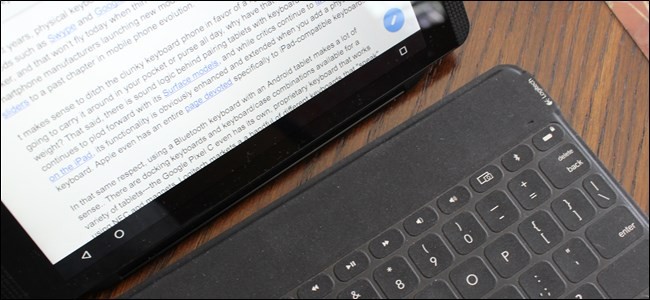
More and more, people are starting to discover that tablets make decent productivity tools. With devices like the Microsoft Surface and iPad Pro becoming more popular, you may be looking to create something similar with your Android device. With a Bluetooth keyboard, it’s simple. Here’s how to connect one, and everything you can do with it.

How to Pair Your Keyboard

Setting up a Bluetooth keyboard with Android is very easy. First, you’ll need a Bluetooth keyboard and, of course, an Android device. For this example, I’m using a Logitech Keys-to-Go keyboard.
In Android, enable Bluetooth if it isn’t already on. To enable Bluetooth, simply go to Settings > Bluetooth and tap the slider button to “On”. Then, turn on your Bluetooth keyboard and put it into pairing mode. (It will usually go into pairing mode automatically after you turn it on, though some keyboards may require an extra step—check your manual if you aren’t sure.)
Screenshot_20161031-104638
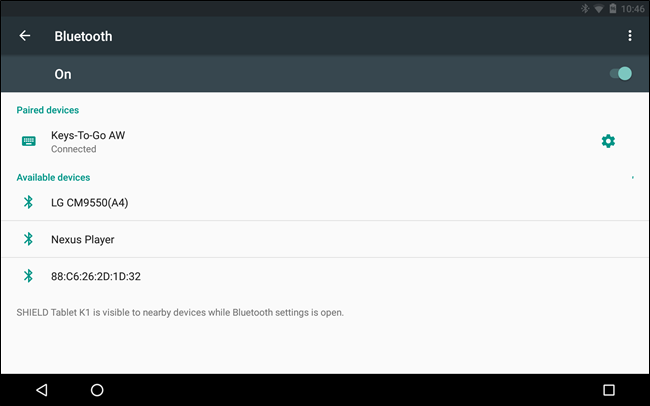
On the Bluetooth screen, your Android device should automatically search for and find your keyboard. If you don’t get it right the first time, simply turn the keyboard on again and then tap “Search for Devices” to try again. If it still doesn’t work, make sure you have fresh batteries (or the keyboard is charged) and the keyboard isn’t paired to another device. If it is, you will need to unpair it before it will work with your Android device.
When Android finds your keyboard, select it under “Available Devices” and you should be prompted to type in a code.
Screenshot_20161031-102432
If successful, you will see that device is now “Connected” and you’re ready to go.
If you want to test things out, try pressing Windows+Esc on the keyboard (or Command+Esc if it’s a Mac keyboard), and you will be whisked to your Home screen.

How to Use Your Keyboard

You probably know you can use your keyboard to type out emails, blog posts, or whatever other longform text you want. But your keyboard can do more than type. Traditional Windows and Mac users know there’s usually a keyboard shortcut for just about everything. So where does Android fall in terms of baked-in keyboard commands?
We’d say Android’s keyboard shortcuts are “enough, but not too much”. There are definitely established combos you can use to get around, but they aren’t clear and there doesn’t appear to be any one authority on what they are. Still, there is enough keyboard functionality in Android to make it a viable option, if only for those times when you need to get something done and an on-screen keyboard simply won’t do.
It’s important to remember that Android is, and likely always will be, a touch-first interface. That said, it does make some concessions to physical keyboards. In other words, you can get around Android fairly well without having to lift your hands off the keys, but you will still have to tap the screen regularly unless you add a mouse. For example, you can wake your device by tapping a key rather than pressing its power button. If you have a password or PIN, you can type it in with your keyboard, but if your device is slide or pattern-locked, then you’ll have to use the touch screen to unlock it. Other things like widgets and app controls and features will also have to be tapped. You get the idea.
Keyboard Shortcuts and Navigation
As we said, baked-in keyboard shortcut combos aren’t necessarily abundant nor apparent. The one thing you can always do is search. Any time you want to Google something, start typing from the Home screen and the search screen will automatically open and begin displaying results.
Screenshot_20161031-102739
Other than that, here is what we were able to figure out:
  • Esc = Go Back
  • Ctrl+Esc = Menu
  • Alt+Space = Search Page (say “OK Google” to voice search)
  • Alt+Tab and Alt+Shift+Tab = Switch Tasks
Also, if you have designated volume function keys, those will probably work too. There are also some dedicated shortcuts that launch apps like calculator, Gmail, and a few others:
  • Windows+C = Contacts
  • Windows+G = Gmail
  • Windows+L = Calendar
  • Windows+P = Play Music
  • Windows+Y = YouTube
Overall, this is not a comprehensive list, and there are no dedicated keyboard combos for the full array of Google’s products. Granted, it’s hard to imagine getting a lot of mileage out of a keyboard with Maps, but with something like Keep, you could type out long, detailed lists on your tablet and then view them on your smartphone when you go out shopping.
You can also use the arrow keys to navigate your Home screen shortcuts and open the app drawer. When something on the screen is selected, it will be highlighted. Press “Enter” to open your selection.
Screenshot_20161031-105331
Additionally, if an app has its own set of shortcuts, like Gmail or Chrome, some—though not many—will work in Android (not YouTube, for instance). Also, many “universal” shortcuts such as Copy (Ctrl+C), Cut (Ctrl+X), Paste (Ctrl+V), and Select All (Ctrl+A) work in lots of apps.
Creating Custom Application Shortcuts
While custom keyboard shortcuts were actually a part of the system back in the Gingerbread days, that is sadly no longer the case. Fortunately, there’s an app for that (as with everything).
It is called External Keyboard Helper (EKH), and while there is a free demo version, the pay version is only a few bucks.
To use it, first open the application and you’ll see the main app screen. Don’t worry about choosing a custom layout or anything like that. You want to go straight to the “Advanced Settings”.
Screenshot_20161031-105644
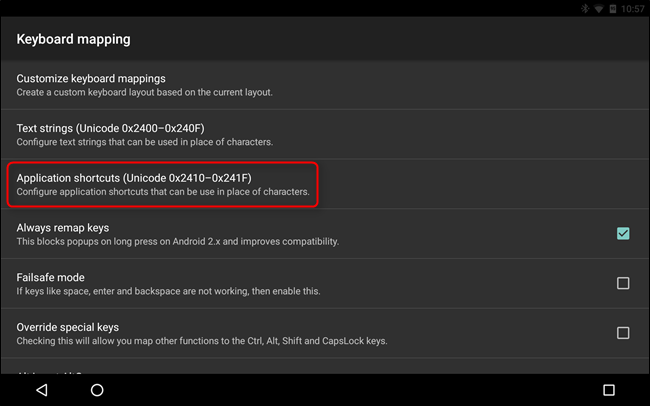
From there select “Keyboard Mapping”, then “Application Shortcuts”.
Screenshot_20161031-105728
You can have up to 16 custom application shortcuts. For this example, let’s create a custom shortcut to the Facebook app. First, choose “A0”, and from the resulting list, Facebook. You can do this for any number of apps, services, and settings. As you can now see, the Facebook app has now been linked to application-zero (A0):
Screenshot_20161031-105930
Now, go back to the Advanced Settings page and choose “Customize Keyboard Mappings”. You will be prompted to create a custom keyboard layout, select “Custom 1″.
Screenshot_20161031-105946
When you choose to create a custom layout, you can do a great many more things with your keyboard. For example, many keyboards have predefined function (Fn) keys, which you can map to your tablet’s brightness controls, Wi-Fi toggle, and much more.
A word of advice: the application automatically remaps certain keys when you create a custom layout. This might mess up some existing keyboard combos. If you simply want to add some functionality to your keyboard, you can go ahead and delete EKH’s default changes and start your custom layout from scratch.
To create a new combo, select “Add new key mapping”.
Screenshot_20161031-110030
For the new shortcut, let’s assign the Facebook app to open when Alt+F is pressed. To do this, tap the “Scancode” field and input the “F” key on your keyboard—it will show up as “33,” as this is the letter F’s keycode. You can also change this later by using the “Change” button.
Now, let’s assign the Alt key to application “A0”, previously designated as the Facebook app. In the “AltGr” field, enter “A0” and then save the custom combo.
Screenshot_20161031-110310
From here on out, as long as you’re using the custom layout you just created, the Facebook app should launch whenever you press Alt+F on your keyboard. Easy peasy.
Screenshot_20161031-111034
External Keyboard Helper extends far beyond simple application shortcuts, and if you’re looking for deeper keyboard customization options, you should definitely check it out. Among other things, EKH also supports dozens of languages, and allows you to quickly switch between layouts using a key or combo, add up to 16 custom text shortcuts, and much more.
You can gran the full version for $1.99 on the Play Store, but you can try the demo version for free. More extensive documentation on how to use the app is also available.

Unlike traditional desktop operating systems, you don’t need a physical keyboard and mouse to use a mobile operating system. You can buy an iPad, Pixel C, or any other Android tablet and never need another accessory or peripheral—they work as intended right out of the box. In theory, you could write an essay, book, or anything else using just the touch-based keyboard on a tablet—but that would be tedious and absurdly time-consuming. Not recommended.
Using a keyboard with Android makes more sense in that situation. You don’t even need to add customizations (though they are nice), because there are enough existing keyboard shortcuts in Android to make it usable. Plus, when it comes to inputting text such as in an editor or terminal application, we fully advocate big, physical keyboards. Bottom line: if you’re looking for a way to enhance your Android tablet, give a keyboard a chance.

Saturday, 22 April 2017

HOW TO SHUT DOWN A COMPUTER SYSTEM FROM ANOTHER COMPUTER SYSTEM

Image result for windows logo
Have you ever attempted to shut down another person’s computer from your own computer, which we also call remote shutdown?

Perhaps some people have never used this feature on Windows computer and even know little about it. But actually, this can be very useful if you want to quickly shutdown multiple computers at home, in school, or on your network. Now this article shares several tricks on how to shutdown a computer from another computer.

Tuesday, 18 April 2017

BASIC COMPUTER SECURITY: HOW TO PROTECT YOURSELF FROM VIRUSES, HACKERS AND THIEVES


People often think of computer security as something technical and complicated. And when you get into the nitty-gritty, it can be—but the most important stuff is actually very simple. Here are the basic, important things you should do to make yourself safer online.

Saturday, 15 April 2017

HOW TO REMOVE "POWERED BY BLOGGER" ATTRIBUTION WIDGET FROM YOUR BLOG


Are you a blogger, and you don't know how you can remove the stubborn attribution "powered by blogger' widget from your blog? Then have no worry because in this post i'll teach how to do it.

I will be demonstrating how to remove or hide the attribution widget "Powered by Blogger" in footer of blogger blogspot blogs. Before going to the process, backup your blogger template.

Tuesday, 27 December 2016

HOW TO BROWSE UNLIMITEDLY FOR FREE WITH AIRTEL ON ANDROID


Hello dedicated readers this post is fresh from the stables...

This is a free browsing cheat on airtel that I'm dropping so just read carefully teat it and enjoy it while it lasts. So without wasting your time let's go straight to the requirements.

✔ Download a vpn (Psiphon e.t.c)

✔ Make sure You have No Credit Or Mb Inside your Airtel Simcard

✔ Launch The Vpn And Configure It Properly Like This

This cheat doesn't require data or airtime to work so it may misbehave if you have data. To be on the safe side just use an empty (no airtime & no datal sim

How To Configure Airtel Free Browsing Cheat On Vpn


✔ Tick On Remove port
✔ Proxy Type: No proxy Or Reverse Proxy
✔ Proxy Serve: Airtellive.ng
✔ Real Proxy type: Default
✔ Then Scroll down Use proxy port: 80

You Can also check The Screenshot Below
Now Launch your VPN app (Syphonshield Vpn, Psiphon A+ Pro, Or Even Success Vpn any good VPN will work)
Go-To Options
Put Host: Address 172.24.248.150
Put Host :Port 8080

Save And Start Flexing unlimited data. This cheat has been personally Tested... It works on All Android devices... Please don't underrate This cheat it's Working perfectly... If yours doesn't Works comment, I will asist You... Thanks and don't forget to always share.
Instagram